3D Maps
Every web map has a 3D view: real terrain, your layers draped on it, buildings raised from a height field, laser point clouds, 3D city models and a sun and shadow study. Published maps keep the view.
The 3D view#
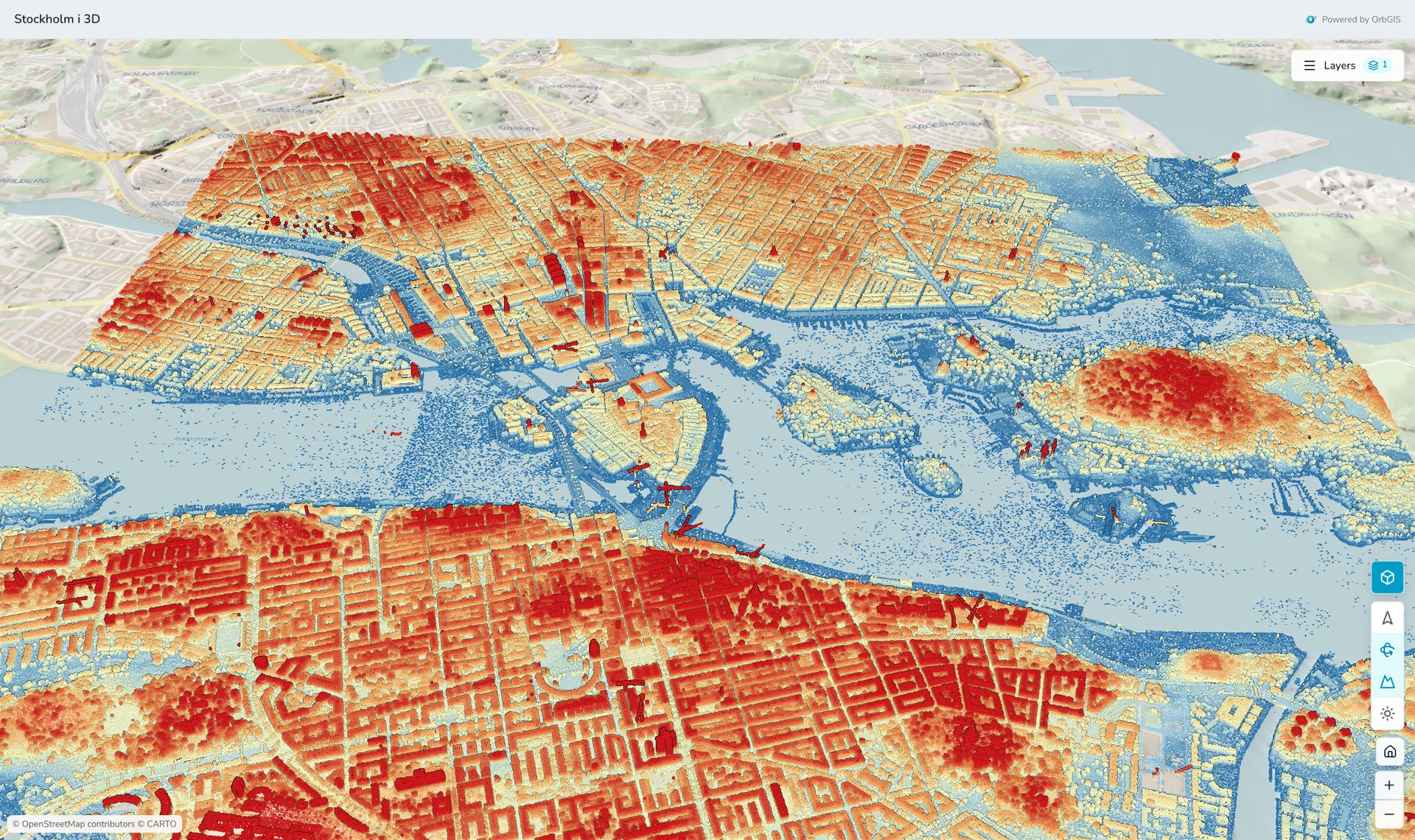
The 3D button sits at the bottom of the map viewer’s right tool column, under the zoom buttons, and on a published map page at the bottom right, above the home button. The first switch downloads the 3D engine (a few megabytes, cached from then on); 2D users never download it. In 3D the tool column gets Face north, Tilt the view / View from above, Show terrain / Hide terrain (only where the area in view has terrain) and the Sun and shadow study. Hold Shift and drag to tilt and rotate, scroll to zoom. Back to 2D puts the 2D map where the globe was looking.
Terrain#
Elevation models for all of Sweden (Lantmäteriet’s Markhöjdmodell) and Finland (the National Land Survey’s elevation model) are built in, with finer detail over the larger cities. The terrain is shaded from the north-west like a cartographic hillshade, so relief reads without a sun. The terrain button is shown only while the area in view has terrain; elsewhere the globe is flat at sea level. Point clouds and city models are placed at their true height, in RH 2000 or N2000, through the national geoid models.
Your layers in 3D#
- Feature layers lie on the terrain with exactly the 2D styling: symbology, filters, opacity and layer order. Labels stand upright facing the screen and are thinned out where they would overlap. Clicking a feature opens the normal pop-up.
- Basemaps drape over the globe. A basemap in SWEREF 99 TM or another national grid is shown through the same provider’s Web Mercator version; when no 3D version exists, a notice names the basemap shown instead.
- Tile, WMS and vector tile layers and uploaded raster basemaps drape too. Blend modes are not shown in 3D.
- A layer that cannot be drawn raises the notice Some layers can’t be shown in 3D.
Buildings from a polygon layer#
Any polygon layer can be raised into blocks: select it, open Styles → 3D height and turn on Raise in the 3D view. Choose Height in metres (a Height field) or floors (a Floors field, 3.2 m each), and optionally a Base height field for blocks that start above the ground. The blocks stand on the terrain, take the layer’s colours and filters, open the layer’s pop-up when clicked and cast shadows in the sun study. Blocks are loaded for what the camera sees; from far away the layer is drawn flat and the notice Zoom in to see 3D buildings appears.
Point clouds#
A Point cloud item is made by uploading one or many LAS/LAZ files in the portal; together they become one item and one layer. Accepted: SWEREF 99 TM with RH 2000 heights, and ETRS-TM35FIN with N2000. Limits: 1 GB per file, 20 GB and 200 files per item. Processing runs in the background and the item page shows a 3D preview when it is ready. In 2D the layer is a dashed outline of the area; in 3D it is the points.
- Colour by Class, Height, Intensity or True colour (when the files carry colour).
- Classes: show or hide each class (ground, buildings, vegetation, water, …) with its point count.
- Height range in metres above sea level, Point size, Detail (low, medium, high) and Edge shading, which darkens depth edges so shapes stand out.
- Click a point to read its class, height above sea level and intensity.
3D city models#
A 3D city model item is made by uploading CityGML 1.0 or 2.0 (3CIM included), CityJSON 1.0–2.0 or CityJSONSeq, plain, zipped or gzipped. Accepted coordinate systems: SWEREF 99 TM and the twelve local zones with RH 2000, and ETRS-TM35FIN or the ETRS-GK zones with N2000. Limits: 1 GB per file, 10 GB and 50 files per item. LOD2 geometry (real roof shapes) is preferred, then LOD3 and LOD1; textures are not shown. In the map, Colour by roofs and walls, one colour or an attribute; clicking a building shows its attributes, height and level of detail. City models cast shadows in the sun study.
City models are shown to signed-in members only for now. On a published map page the layer is left out for visitors; point clouds, terrain and raised buildings are shown.
Sun and shadow study#
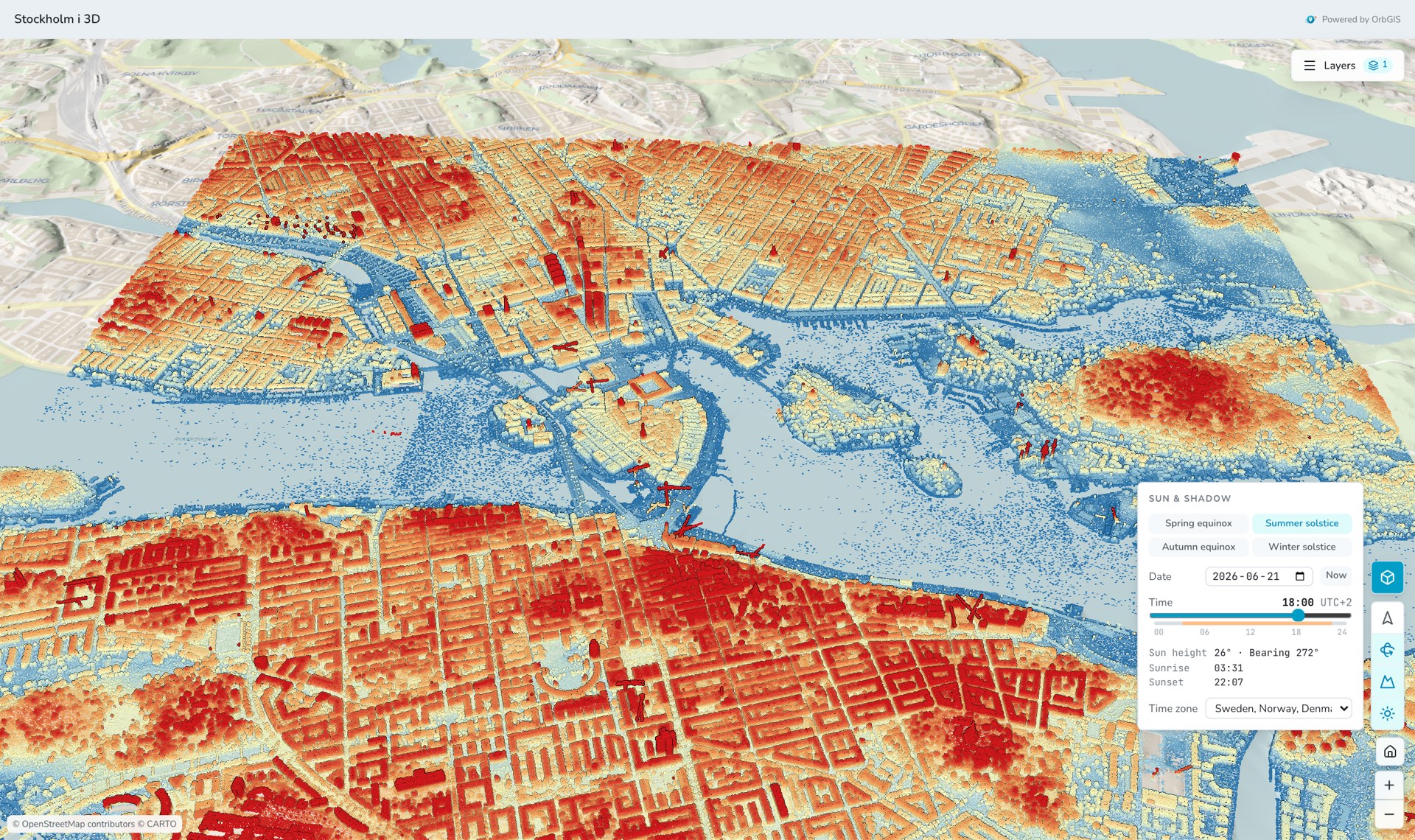
The Sun button opens the Sun & shadow panel. Pick a Date, or one of Spring equinox, Summer solstice, Autumn equinox and Winter solstice for that year, drag Time of day in five-minute steps along the daylight band, or press Now. The panel shows Sun height, Bearing, Sunrise and Sunset for the centre of the view, and says when the sun is below the horizon. Times are wall-clock in a Time zone you choose: your own by default, Sweden/Norway/Denmark, Finland or UTC. While the study is on, raised buildings and city models cast shadows on the terrain. On phones, weak graphics cards and software rendering the shadows are drawn at reduced quality, and the panel says so.
Publishing#
A published map carries its 3D view: visitors get the same switch, the terrain, the draped and raised layers and the map’s point clouds, with no sign-in. A point cloud becomes readable to visitors only through a published map that uses it, and unpublishing the map (or trashing the cloud) takes it down again within a few minutes. See Sharing & publishing.
Step by step: Build your first 3D map. The 2D side of the viewer is described in Web Maps, and uploads in Uploading data.