Build your first 3D map
Switch a web map to 3D, raise its buildings from a height field, add laser data and run a sun and shadow study, then publish it so visitors get the same view.
Styling layers requires the Editor role or higher, and so does uploading point clouds and city models. Publishing a map requires Publisher or Admin. The 3D view needs a browser with WebGL; on a computer without graphics hardware it runs with fewer points and simpler shadows.
Open a map and switch to 3D
Open any web map in the viewer and press the 3D button at the bottom of the tool column on the right, under the zoom buttons. The first switch downloads the 3D engine, after that it is instant. The globe opens tilted with the terrain on. Hold Shift and drag to tilt and rotate, use the buttons to Face north, View from above or Tilt the view, and switch Show terrain off and on where terrain is available.
Raise the buildings
Select a polygon layer that carries a height, say building footprints with a height in metres or a floor count. Open Styles, scroll to 3D height, turn on Raise in the 3D view, choose Height in Metres or Floors × 3.2 m and pick the Height field (or Floors field). A Base height field lifts the blocks off the ground when your data has one. The blocks take the layer’s colours and filters, and clicking one opens its pop-up. From far away the layer is drawn flat; zoom in to see the blocks.
Add laser data
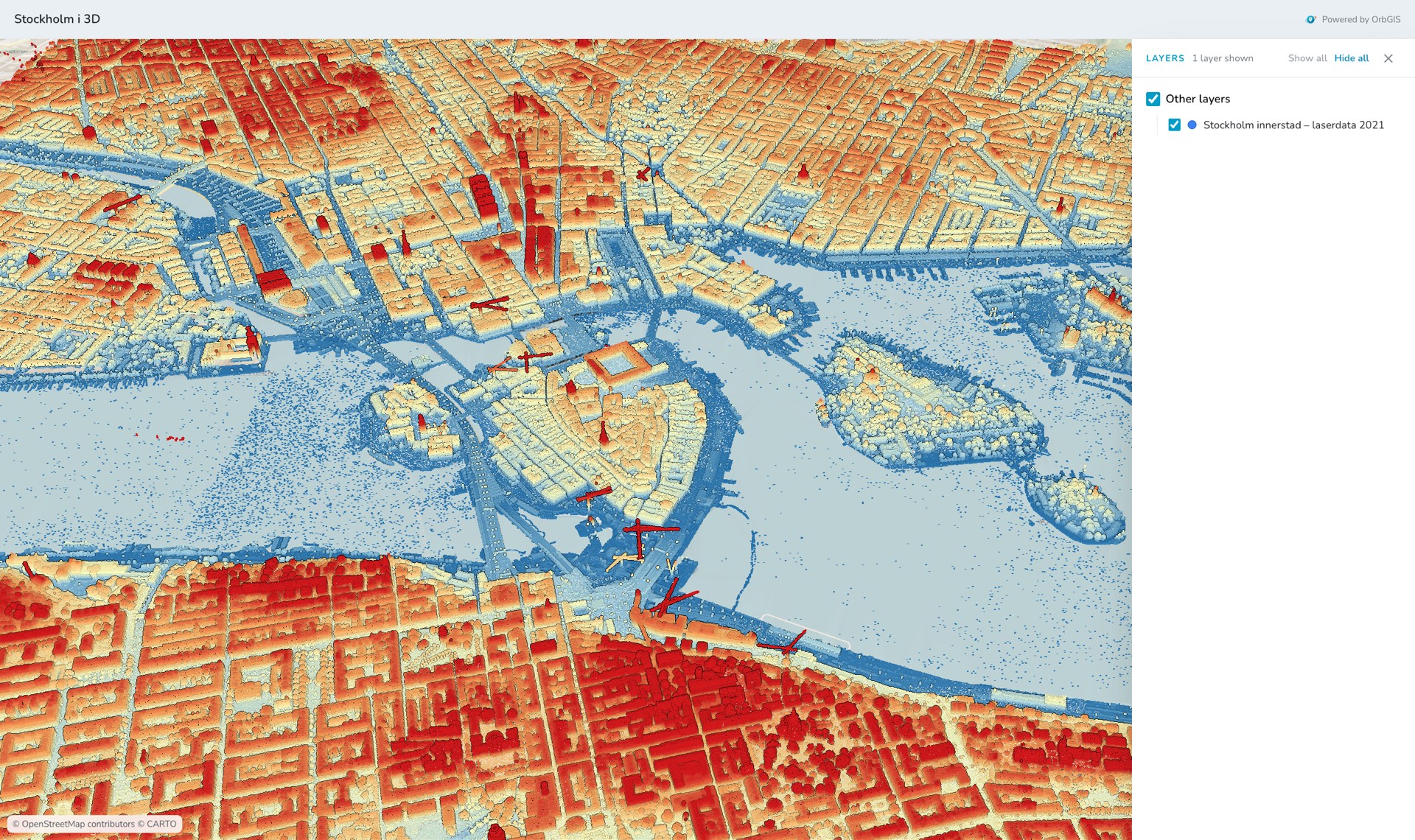
In the portal, press Upload and drop one or more LAS/LAZ files; together they become one Point cloud item, processed in the background. The files must be in SWEREF 99 TM with RH 2000 heights, or ETRS-TM35FIN with N2000. When the item is ready, open it and press Open in Map, or add it to your map from Add → My Content, and style it under Styles: colour by class, height or intensity, hide classes, set the height range and the point size.
Add a city model
Upload a CityGML or CityJSON file (zipped is fine) the same way; it becomes a 3D city model item. Add it to the map and choose Colour by: roofs and walls, one colour, or an attribute. Click a building in 3D to read its attributes.
Run the sun and shadow study
Press the Sun button in the 3D tool column. Pick a date, or press Summer solstice or Spring equinox, drag the Time of day slider and watch the shadows move. The panel shows sun height, bearing, sunrise and sunset for the centre of the view, in the time zone you choose.
Save and publish
Save the map (
Ctrl+S). To let others explore it in 3D, press Share and publish it: the public map page has the same 3D switch, and visitors get the terrain, your layers and the point clouds without signing in. City models are not shown to visitors yet.
Raised buildings, point clouds and city models are ordinary layers: filters, pop-ups and the layer list work as in 2D, and the 2D map shows a dashed outline where a point cloud or city model lies. Every control in detail: 3D Maps.
See a published 3D map in the Stockholm i 3D demo: Lantmäteriet’s 2021 laser scan of the inner city, 56 million points, on the built-in terrain.